Roster activity
Last 7 days
—
active this week
— total clients
Trainly
Loading your workspace…
Review and respond to new client requests.
Roster activity
Last 7 days
— total clients
Workout completion
Last 7 days
Comparing weeks…
Check-in completion
Last 7 days
Comparing weeks…
Reviews, sessions, and follow-ups to keep moving.
Today's workouts
The latest from your clients and coaching.
Last 7 days
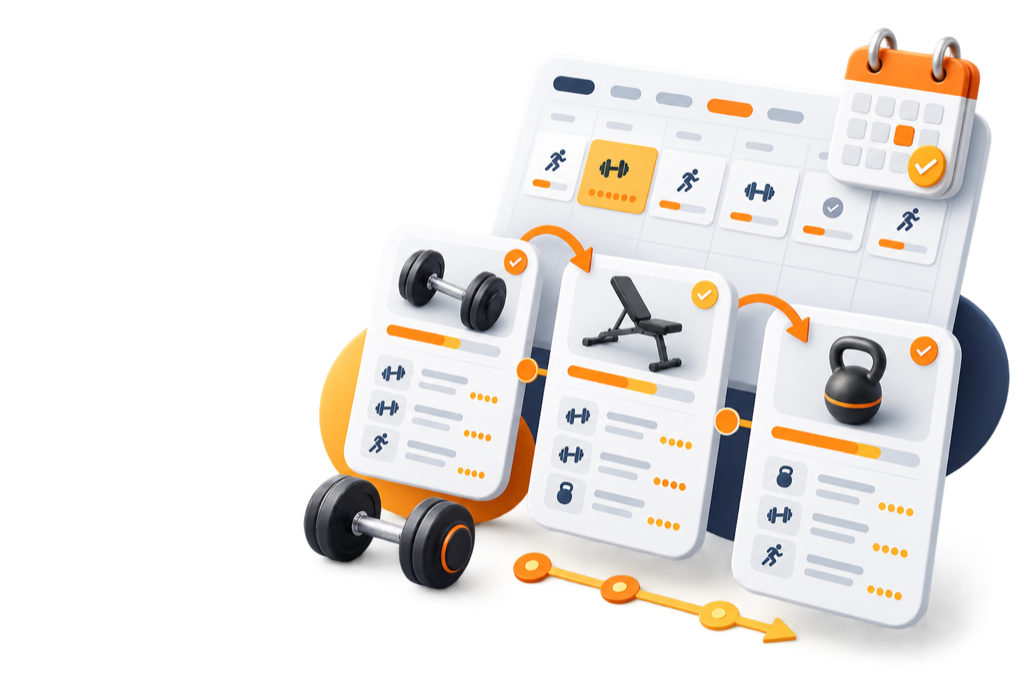
Program Library
Sequence trainings into reusable plans, then enroll clients without rebuilding each week.
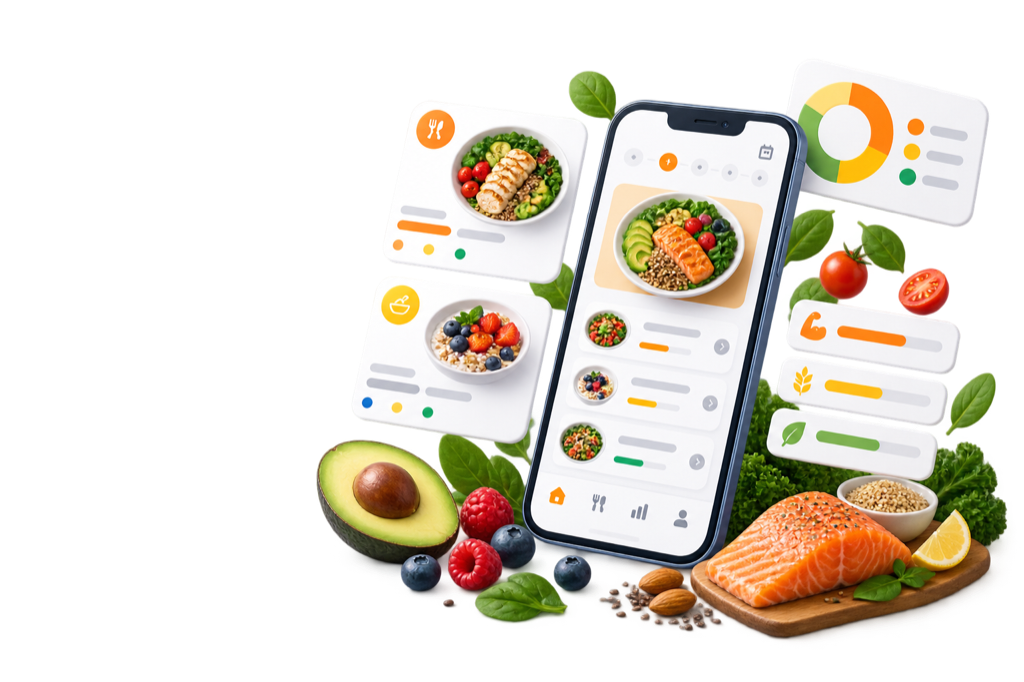
Nutrition Library
Create reusable training- and rest-day plans, then tailor copies for each client.
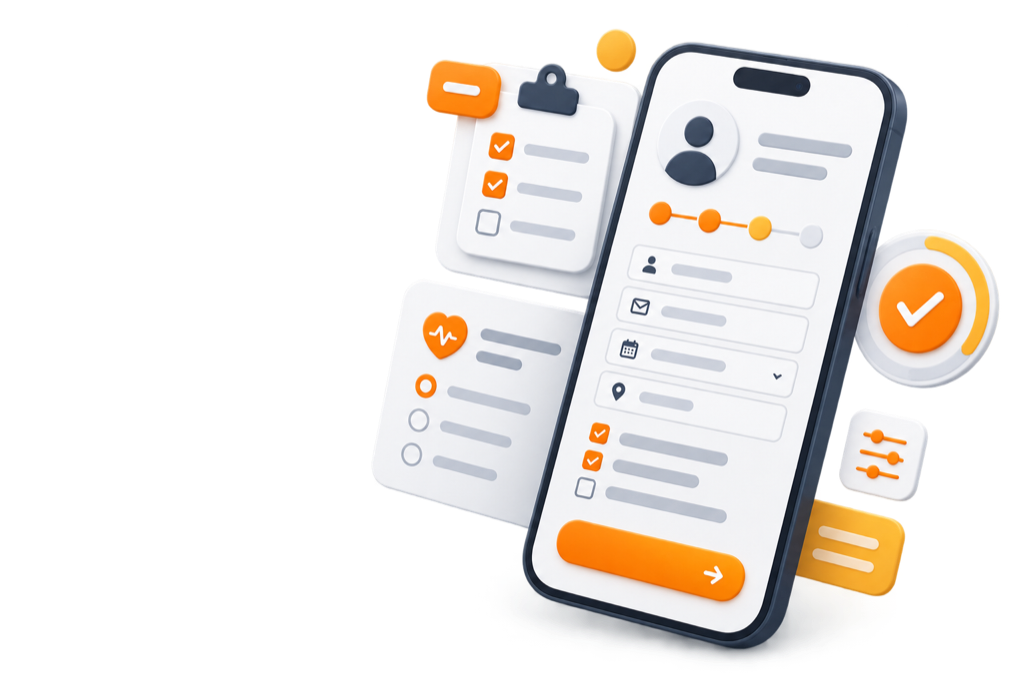
Onboarding Forms
Build reusable intake forms for goals, availability, health details, and coaching preferences.
Check-In Library
Create recurring check-ins to collect updates, spot changes, and guide the next coaching step.

Coaching video workspace
Upload technique demos once, organize them by movement and goal, then add the right video wherever a client needs it.
Video details
0Adjust the thumbnail before saving this upload.
Bulk Defaults
Pending Items
No pending uploaded videos.
Up to 1 minute per video · Recommended resolution: 720–960p.
Add YouTube
Filters
0 videos Selected: 0
No videos found.
Drop Videos To Upload
Drop anywhere on this page to start upload.
Choose a client, training, and date. In-person sessions can include exact times.
Schedule
Mode
Share coaching updates, useful lessons, and wins with all of your clients.

Completed and overdue workouts and check-ins for the selected period.
Find clients who are inactive, missing workouts, or skipping check-ins.
| Status |
|---|
Completed workouts and check-ins compared with scheduled items.
Weighted volume completed over time.
See how a movement is progressing across completed workouts.
The latest scheduled workouts and check-ins in this period.
Frequency and best logged performance for each exercise.
Attach a welcome form to gather goals, preferences, and basics before the first message.
Send a personalized welcome note so new clients know exactly what happens next.
Add a program or starter workout so the client lands in the app with action ready.

Loading codes...
CLIENT ONBOARDING
Set how clients joining with this code are organized.
Make the first connection personal.
Shown when a client connects. ⓘ
Get to know your client.
Your selected form replaces the default intake questions.
Give clients their starting plan.
Clients choose their training start date during onboarding.
Have nutrition ready from day one.
Assigned immediately when onboarding finishes.
Set a consistent coaching rhythm.
Relative to onboarding completion, at 9:00 AM in the client's time zone. Zero days makes it due immediately.
Capture a baseline for progress.
Request a starting point for tracking progress. These requests do not block onboarding.
Theme, zoom, and navigation preferences for your web dashboard.
Switch between light and dark.
English or Serbian interface.
Choose and reorder workspace sections.
Invite coaches with your link. You get EUR 20 credit and your friend gets EUR 20 off once eligibility is approved.
Page 1 of 1
Images up to 8MB, videos up to 25MB. Max 10 files, 60MB total.
0/10 files · 0/60MB
Ready to send.
We include browser + device info automatically. Reports are delivered to support email.
Full Body Focus
Welcome to your coaching journey.
Create a custom experience for every client by disabling or enabling certain features. When a feature is disabled, it will not appear on your client's mobile app, except for Macros.
Let your client add extra workouts or unassigned activities
Meal plans, macro targets and food logging for your clients
Message your client directly through the platform
Visualize improvement with before and after photos
Track client progress using various body metrics
Default for new clients. Controls later date changes; flexible clients can always choose an initial day.
Fixed days or a weekly target completed in any order.
Used by Fixed mode. Resets Monday.
Delete your trainer data or account. A retained copy is stored for 28 days for review.
Quick answers and walkthroughs for setting up your coaching workspace.
Dashboard gives you a same-day command center for trainee activity, quick actions, scheduled workouts, and the latest check-in or message updates.
Open Clients to search your roster, review tags, and add new trainees. Use the client row to jump into check-ins, progress, notes, payments, and training details.
Messages centralize trainee conversations, media, and quick follow-ups so coaching context stays next to the client profile.
Use Schedule to assign workouts, reschedule sessions, monitor conflicts, and filter by trainee or coaching mode.
Tip: Cmd/Ctrl-click trainings in the calendar to select multiple at once, then move or cancel them together.
Community is your trainer feed for posts, updates, lessons, and discussion with your trainees.
Create a form, assign it to a client, then review submissions from the client profile.
Reuse exercises from Exercise Library when building trainings, then combine those trainings into plans in Program Library before assigning or enrolling trainees.
Nutrition Library stores reusable meal plans for training and rest days, with macros and meals ready to assign to clients.
Onboarding Forms are used only when a trainee joins through an Onboarding Flow. Use Check-Ins for every later one-time or recurring update.
Video Library stores exercise demos and private uploads so you can attach clear instructions to workouts.
Yes. Use Onboarding Flow to create trainer codes that collect forms, welcome messages, and starter assignments.
Analytics summarizes trainee activity, check-in trends, completion, and performance patterns across your workspace.
Photos live in the client Photos tab and the newest three dates are summarized on the client Overview page.
Settings covers workspace preferences, sidebar visibility, notification filters, coach profile details, and display defaults.
Default Client Settings define the starting units, enabled mobile app features, and training calendar permissions for every new client you add.
Use a client's Settings tab to enable or hide mobile app areas for that client. Disabled features appear muted in this view and should not be treated as active parts of that client's app experience.
Use a client profile to record manual payments, view the current cycle, and keep payment history attached to the client.
Video mapping by exercise order
Click to upload or drag video
MP4, MOV (iPhone/HEVC), WebM supported
Supports YouTube, Vimeo, or direct video links
Mode Differences
Live app preview for the current training draft.
Turn these analytics into a polished, share-ready image.
Client identity is excluded.